Set Up Git and GitHub
Setting up SSH Key for Git and GitHub
- First, make sure you have git.
- Make sure you have a GitHub account
- Add your GitHub email and username to your local git configuration
git config --global user.name "username"
git config --global user.email "email"
replace "username" with your GitHub username and replace "email" with your GitHub email
- To check if these commands have taken effect, output the configuration variables
git config --global --list
this will output all the config variables that have been set
- Since GitHub no longer supports password authentication over git, we will have to set up an SSH key which serves as the means of authentication.
- Login into your GitHub account in the browser and navigate to the settings page.
- On the settings page, select SSH and GPG keys
- Click on a new SSH key
- GitHub will provide you with a form with three input fields.
The first one is the
- "Title": This is pretty much the name or tag you would use to identify the machine which will use this key. It helps with managing the keys, especially if they're many.
- "Key Type": it is used to determine what the key will be used for.
- "Key": which is the encrypted key we will be using.
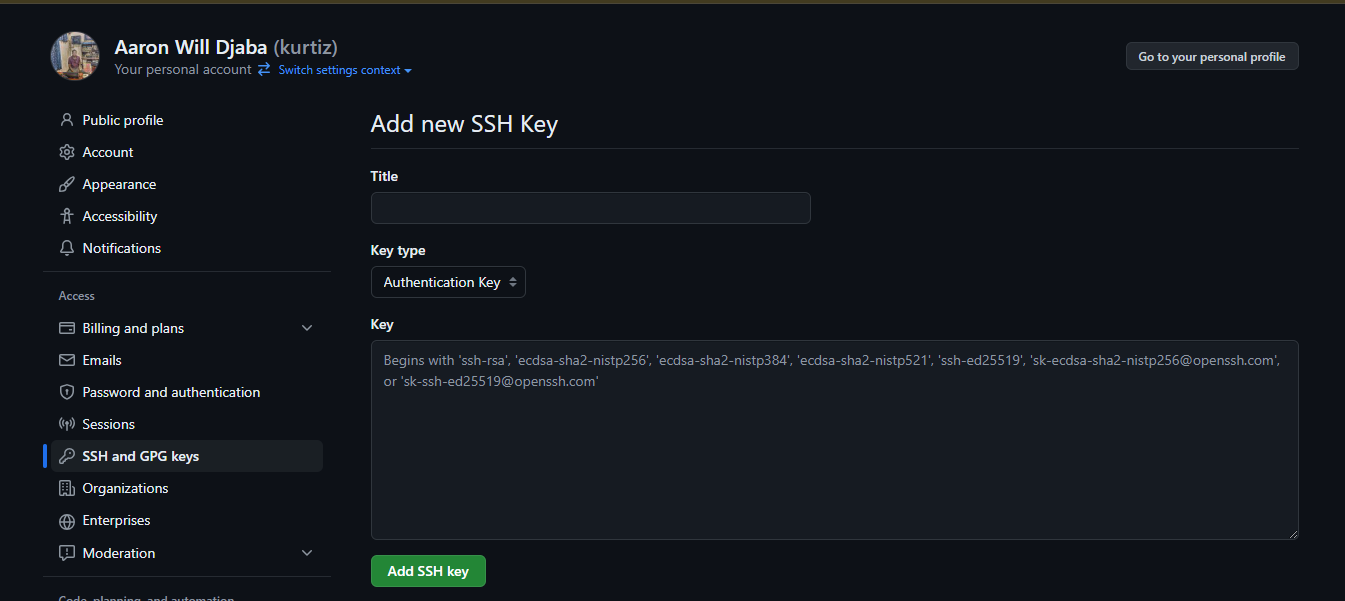
- We will have to generate our key and link it to our GitHub account. GitHub recommends the ed25519 encryption but allows rsa encryption if you're using a legacy system.
- To create the key, we will use the ssh-keygen command.
ssh-keygen -t ed25519 -C "your_email@example.com"
Please note that the email using are using should be your primary email on GitHub
-
Upon running this command, the program will request a location to save the file. To leave it as default, press enter.
-
The request would be for you to enter a password if you would like to further secure your SSH key. If you don't want to use a password, press "Enter"
-
Retype the password again or just press 'Enter' if you did not enter a password previously.
-
Upon completion, an SSH key will be generated. It actually generates two keys. A private key and a public key. the private key is kept on your local machine, and the public key is sent to GitHub. The two keys are required to decrypt and authenticate your connection to GitHub
-
Now we will have to register our newly generated key to our ssh service. Usually the key generated is saved in a '.ssh' folder in your home directory.
-
Let's start the SSH agent on our local machine
Windows users using Git Bash can run the commands under Linux
For Windows
open PowerShell in administrator mode and run the following commands
Set-Service ssh-agent -StartupType Manual
Start-Service ssh-agent
ssh-agent -s
For Linux / MacOS
eval "$(ssh-agent -s)"
This should return the process ID like this
Agent pid 286
- Now we can add our SSH key.
ssh-add ~/.ssh/id_ed25519
If you used a password when generating the key, you will be required to enter the password, otherwise it will be added automatically. You should get a response stating that the identity has been added
- Let's copy the content of the file to our clipboard.
Windows users
cat ~/.ssh/id_ed25519.pub | clip
Linux users
cat ~/.ssh/id_ed25519.pub
- this will output the content of the file, select and copy it
MacOS users
pbcopy < ~/.ssh/id_ed25519.pub
- With the key copied to our clipboard, we will go back to our GitHub
settings page > SSH and GPG Keys and paste the content in the
key field. Enter the Name you would want to use to identify
your machine on GitHub. Select authentication as the key type
and click add.
Please make sure there is no whitespace before or after the key when copying or pasting.
- We’ve successfully added the SSH key to GitHub. Let's test it to see if it works.
ssh -T git@github.com
Since this is our first time using this machine to ssh into GitHub, we will encounter a warning screen. The warning is to prompt you about connecting to an SSH server for the first time.
Type yes and press "Enter". A message like this should be returned
Hi username! You've successfully authenticated, but GitHub
does not provide shell access.
Any response apart from this means there has been an error, either with setting up the key or internet problem.